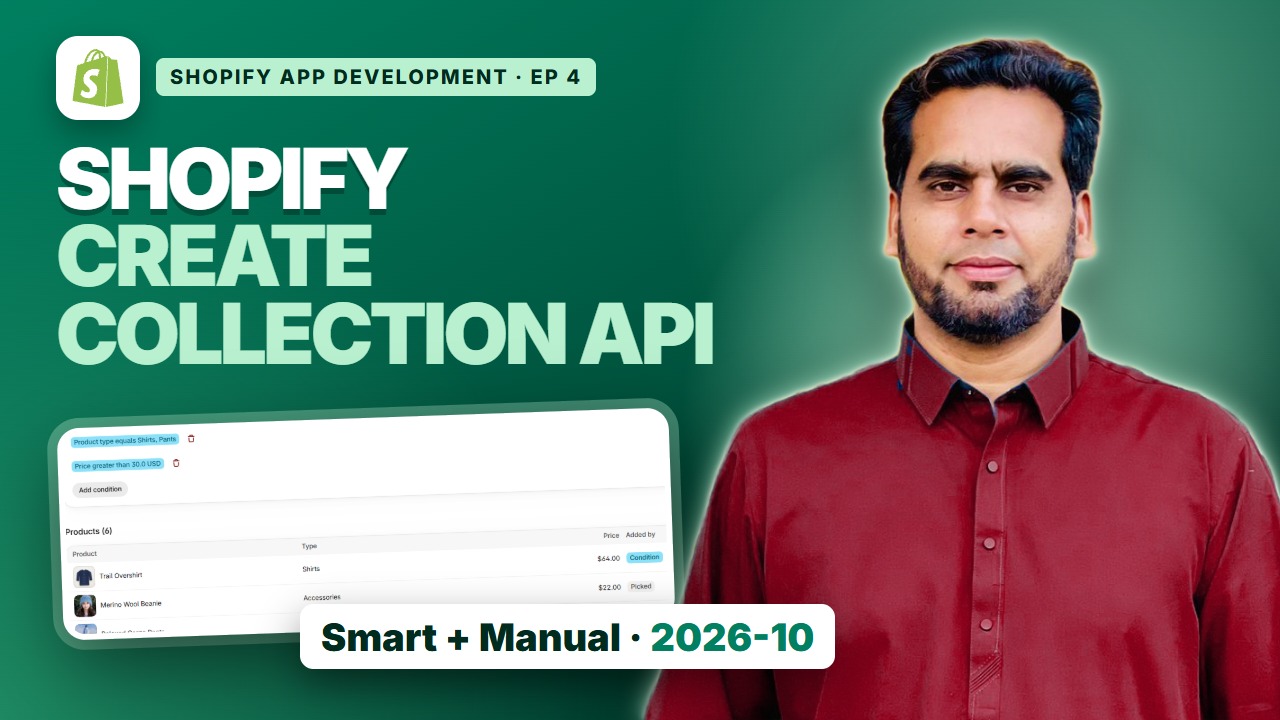
Shopify GraphQL create collection tutorial (2026): build a real collections manager inside your Shopify app with the GraphQL Admin API 2026-10 – manual and smart collections, the new sources model (conditions, hand-picked products, exclusions), Shopify's product picker, rename and delete, on a real development store. Shopify app development series, episode 4 – everything shown is real, nothing skipped.
What you'll learn
- Manual vs smart collections
- collectionCreate with sources (2026-10)
- collectionUpdate: selectionsToAdd, selectionsToRemove, exclusions, conditionsToCreate
- Why collectionAddProducts is deprecated
- App Bridge resource picker + Polaris web components
- Smart collections update in the background
💻 Free source code for this episode: github.com/fayyaz315/shopify-app-development-2026/tree/ep04
Chapters
- 0:00 Preview + intro
- 0:41 Manual vs smart
- 1:20 What changed in 2026-10
- 2:13 The collections page
- 3:06 Create a manual collection
- 3:44 Add products: the resource picker
- 5:06 Create a smart collection
- 6:31 GraphiQL: sources
- 7:13 Conditions, exclusions, picks
- 8:54 Rename and delete
- 9:25 Honest notes
- 10:15 Recap
Step by step (full walkthrough)
Preview + intro
In the next ten minutes, you'll build collections from inside your own Shopify app. Pick products by hand, or let one rule fill the collection by itself, keep one product out, and hand-pick another, all with the brand new collections API in Shopify's 2026-10 version. This is the Shopify GraphQL create collection flow, running inside our own Shopify app.
One rule, and seven products joined this collection by themselves. This is episode four of the Shopify app development series. Products and variants are done; today we group them into collections.
The full code is free on GitHub, and the link is in the description.
Manual vs smart
First, the two kinds of collections. A manual collection is a list you pick yourself, product by product. Like a summer picks page.
A smart collection has conditions instead. Product type is shirts, or price is over $30. Every product that matches joins on its own, now and later.
That's why stores love them: add a new shirt next month, and it shows up in the shirts collection without anyone touching it. And in API version 2026-10, Shopify merged the two ideas. One collection can now have conditions, hand-picked products, and exclusions, all at once.
What changed in 2026-10
That's the big change in this version, so let's look at it before any code. A collection now gets its products from sources. A source is simply one way products get in.
Each source has an inclusion part: the conditions, and the products you picked by hand. And an exclusion part: products that match, but that you keep out on purpose. So the old mutations are on their way out.
collectionAddProducts and collectionRemoveProducts are marked deprecated, and the schema itself says: use collectionUpdate with selectionsToAdd instead. Even the argument name changed. collectionCreate used to take input.
Now it takes collection. Most tutorials you'll find still teach the old way. Everything in this video uses the new one, tested on my real store.
The collections page
Now our app. There's a new Collections page in the menu, listing the store's collections with a smart or manual badge. Every request takes the same path as in the last episodes.
The page asks the loader for data, buttons call the action, and both talk to the Admin GraphQL API on the server. No new permission is needed. The write products scope from episode two covers collections too.
The menu link is one line in the app layout. And the list is one query: the twenty five most recently updated collections. Each with its title, handle, product count and image.
And its sources. If a source has conditions, the badge says smart. If not, manual.
The loader runs that query and also reads the shop's currency. We'll need it for price conditions.
Create a manual collection
Let's create a manual collection first. Create collection opens a form. The title is Summer Picks, with a short description, and the type stays on manual.
Create, and there it is at the top of the list, with zero products. In the app, that's collectionCreate, with the new collection argument. For a manual collection, the action sends only the title and the description.
No source at all. Why no source? I tested it: an empty source is refused.
The error says a source must have at least one product selection or condition.
Add products: the resource picker
I open Summer Picks. No conditions: this is a manual collection. Add products, and this is Shopify's own product picker, the same one the admin uses.
I tick the weekender bag, the polo shirt, and the crew neck tee, and click add. Three products, each with a picked badge. They're here because I chose them.
The toast says saved, three products. That number comes straight back from the mutation. The picker is one call from App Bridge.
No search page or product list to build yourself. It returns the products you chose, and their IDs go straight to the action. This collection has no source yet, so the first products create one.
And notice the field names: a new source uses selections, not selectionsToAdd. I learned that one the hard way. My first recording crashed, because I sent selectionsToAdd to a brand new source.
Shopify said that field doesn't exist there. Now remove. The polo shirt doesn't fit, so I click remove, and we're down to two.
Every change on this page goes through one mutation: collectionUpdate. The action only decides what to change. Remove is selectionsToRemove, inside inclusion.
And it's sent as sourcesToUpdate, with the ID of the source.
Create a smart collection
Back to the list for the fun part: a smart collection. Title Shirts and Pants, and this time I choose smart. The form grows a condition row.
Field product type, condition equals, and the value shirts comma pants. Create. The smart collection API takes it, and the badge says smart.
I open it. Seven products, and every one says condition. I didn't pick a single one.
Trail overshirt, cargo pants, chinos, the oxford shirt. All shirts or pants, found by Shopify, not by my code. The type choice is a Polaris choice list.
Pick smart, and the condition fields appear. The fields come from this small list: product type, vendor, tag, title and price, each with the relations Shopify allows. And one helper turns a form row into a condition.
Text fields get a list of values. Price gets an amount and the shop's currency. For a smart collection, the action adds one source with that condition.
One more real bug from recording: the smart option did nothing. React eighteen doesn't pass change events from these web components. The fix is a tiny hook that listens for the change event directly.
Same trick as the table pagination in episode two.
GraphiQL: sources
Here's the same smart collection in GraphiQL, so you see Shopify's real response. collectionCreate, and in the variables, one source called rules, with a product type condition: shirts or pants. The response has the source with its condition.
But look at the product count: zero. That's not a bug. Shopify matches products in the background.
A few seconds later, I read the collection again, and there are the seven products: shirts and pants, matched by the condition. That's why my pages load the data once more, three seconds after every save. Otherwise you'd see the old count.
Conditions, exclusions, picks
Now let's make the rule stricter. Add condition, field price. Greater than thirty.
Now a product must be a shirt or pants, and cost more than $30. Six products. The casual everyday shirt was cheaper, so it left by itself.
The products must match all conditions now. You can switch that to any condition with the match setting at the top. Next, the linen shirt matches, but I don't want it here.
Exclude, and it moves to its own excluded section. And a smart collection can now take a hand-picked product too. I search the picker for beanie, and add it.
Here it is. The beanie isn't a shirt or pants, but it's in, marked picked. Conditions and picks, in one collection.
All three changes are lines in the same changes object. Add condition is conditionsToCreate. Exclude is selectionsToAdd, but inside exclusion.
And the picker uses selectionsToAdd inside inclusion. On the page, the badge and the button depend on one question: did I pick this product? Picked products get remove.
Matched ones get exclude. In GraphiQL, it's one collectionUpdate. sourcesToUpdate: the source ID, a price condition, the beanie, and the linen shirt as an exclusion.
The source now shows both conditions, the beanie as a selection, and the linen shirt in the exclusion. And reading the products again: six. The beanie is in, the linen shirt and the cheap shirt are out.
Same result as in the app, because the app sends exactly this mutation.
Rename and delete
Last, the everyday operations. Back on the list, edit opens the same form, without the type choice. I add over $30 to the title and save.
That's collectionUpdate again, with only the ID, title and description. The sources stay untouched. And Summer Picks can go.
Delete asks first. The products themselves stay in the store. Gone.
collectionDelete still takes input with the ID, and returns the deleted ID.
Honest notes
A few honest notes before the recap. One: collections made by the API are not automatically shown on your sales channels. My app can't even read that yet: it needs the read publications scope, and that's a later episode.
Two: the old rule set field still exists, but it can't describe the new conditions. After I added the price condition, it simply returned null. Read sources instead.
Three: I load twenty five collections and fifty products per collection. A big store needs pagination, like the products page in episode two. And as always: a mutation can succeed over HTTP and still refuse your input.
Read the userErrors. Everything you saw was tested on my real development store, on API version 2026-10, before I pressed record.
Recap
So, the recap. Read collections with their sources. Create them with collectionCreate and the new collection argument.
Change products, conditions and exclusions with one collectionUpdate and sourcesToUpdate, and delete with collectionDelete. Want to practise? Add a vendor condition, or a button that turns an excluded product back on.
The include again button is already in the code. That's how you create a collection with the Shopify GraphQL API in 2026, inside a real app, on a real store. The full code for this episode is free on GitHub.
The link is in the description. Next episode: inventory and locations. Real stock numbers, at real locations.
See you there.
Quick fixes from this episode (60-second Shorts)
Shopify Smart Collection API 2026: One Condition, 7 Products
Shopify smart collection API (2026-10): create a collection with one condition – product type is Shirts or Pants – and every matching product joins by itself. Then add a price condition.
Shopify Collections API 2026: collectionAddProducts Is Deprecated
Shopify collections API 2026-10 (GraphQL): collectionAddProducts and collectionRemoveProducts are deprecated. After you create a collection, add and remove products with collectionUpdate and selectionsToAdd / selectionsToRemove instead.
Shopify Collection API GraphQL: Exclude One Product from a Smart Collection
Shopify collection API GraphQL (2026-10): a smart collection can now exclude one product and include a hand-picked one – conditions, selections and exclusions in one source.
The Shopify App Development 2026 series
All episodes are free, with the code on GitHub. Course page: Shopify App Development 2026.
- Episode 1: How to Create a Shopify App in 2026 (Shopify CLI Step by Step for Beginners)
- Episode 2: Shopify Admin API Tutorial 2026
- Episode 3: Shopify Product Variants API 2026
- Episode 4: Shopify GraphQL Create Collection 2026 (this episode)
- Episode 5: Shopify Update Inventory API 2026
- Episode 6: Shopify Create Discount Code API 2026
🔔 New episodes every week on the YouTube channel. Need a custom Shopify app or API integration? Wixob Technologies builds them: info@wixob.com.
[…] Episode 4: Shopify GraphQL Create Collection 2026 […]
[…] Episode 4: Shopify GraphQL Create Collection 2026 […]